Bulk QR Code Generation: Make 100 Codes From One Spreadsheet
How to plan a spreadsheet, turn it into up to 100 QR codes in one pass, and check the batch before it goes to print, so every table, tag, and badge scans.
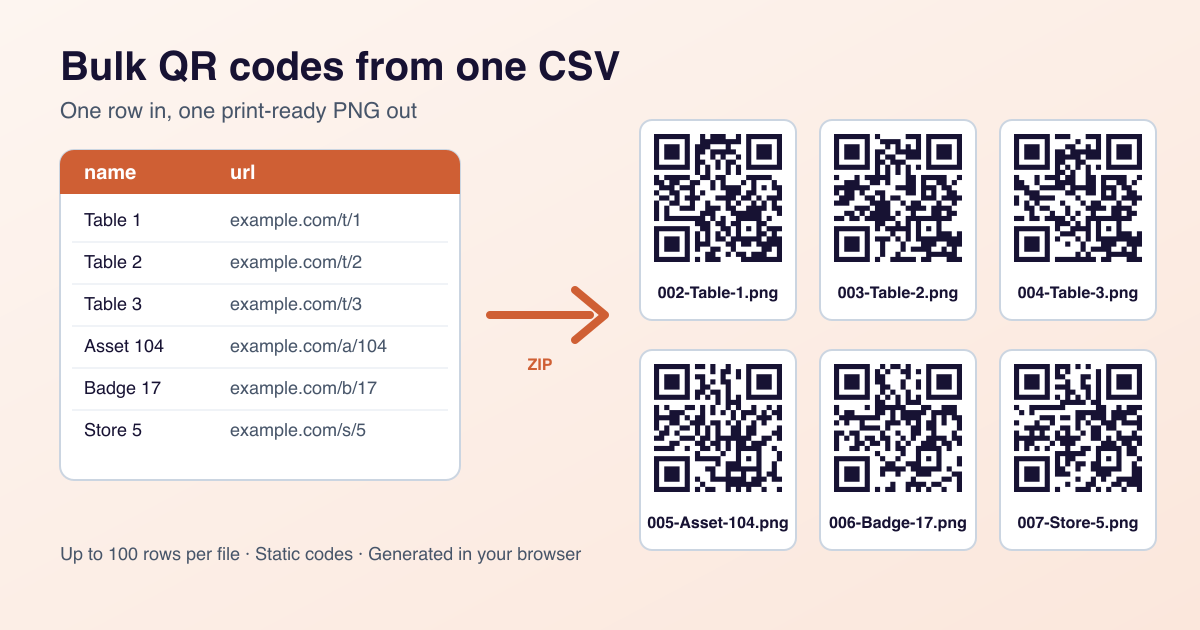
Making one QR code takes ten seconds. Making forty of them, one per table, each pointing at a slightly different page, takes most of an afternoon if you do it by hand, and somewhere around code twenty-seven you paste the wrong link and do not notice until a customer does. The fix is to stop treating the batch as forty separate jobs. Put the names and links in a spreadsheet, check the spreadsheet once, and generate every code from it in a single pass.
Who actually needs codes in bulk?
Bulk generation is worth it whenever you need many codes that share a purpose but differ in destination. The pattern shows up in more places than people expect:
| Use | Typical batch | What changes per code |
|---|---|---|
| Restaurant table numbers | 10 to 60 | A table parameter on the order or menu link |
| Asset tags for equipment | 20 to 100 | A link to each item's record or manual |
| Event badges | 50 to 100 per file | A link to each attendee's profile or session page |
| Product SKUs | 10 to 100 | A product page or instruction page per SKU |
| Per-location flyers | 5 to 30 | A landing page or campaign parameter per branch |
| Classroom sets | 20 to 35 | A link to each student's or group's worksheet |
If every code in the batch points to the same URL, you do not need bulk at all: make one code and print it many times. Bulk earns its place when the destinations differ and a mix-up would send someone to the wrong table, the wrong manual, or the wrong student's work.
Plan the spreadsheet before you open the tool
The spreadsheet is the real work. The tool only turns it into images, so every mistake in the sheet becomes a mistake in the batch. Our bulk tool reads a CSV file with two columns, and the first row must be the header exactly as written:
- url is required. It must be a public web address. If you leave off
https://, it is added for you. Private or internal addresses, such as a router admin page or a server on your office network, are rejected, because a phone outside that network could never open them anyway. - name is optional and becomes the image file name. Keep it to 120 characters or fewer. If you leave it blank, the row is named automatically as "Bulk" plus the date and a number, which works but makes a stack of forty images much harder to match to forty tables.
A small sheet looks like this:
name,url
Table 1,https://example.com/menu?table=1
Table 2,https://example.com/menu?table=2
Table 3,example.com/menu?table=3
A few habits save trouble later. Give every row a name, and make it the label a person will read, "Table 12" or "Projector Room B", not an internal ID nobody recognises at the printer. Build the URLs with a formula from one base address rather than typing each one, so a typo in one cell cannot hide among the rest. And click three or four of the finished links in a browser before exporting. A link that 404s in the spreadsheet will 404 on the table too.
Names can contain commas. A spreadsheet export wraps those fields in quotes, and the tool reads them correctly, so "Smith, J." is fine as a name.
Step by step: generating the batch
- Sign in. Bulk needs a free account. Open Bulk from your dashboard.
- Start from the example if you are unsure. Download the example CSV, open it in your spreadsheet app, and replace its rows with yours. The header is already correct.
- Export as CSV. In Excel, choose CSV UTF-8 (comma delimited). That format handles accented names correctly, and the byte-order mark Excel adds is handled for you. If your spreadsheet app is set to a region that uses semicolons as separators, a plain CSV export may come out semicolon-delimited; choose the comma-delimited option explicitly.
- Upload the file. A single file can hold up to 100 rows and must be under roughly 500 KB, which is far more room than 100 names and links need.
- Read the error list. Any row with a problem is listed by its spreadsheet row number, counting the header as row 1, so row 14 in the list is row 14 in your sheet. The valid rows are not held hostage: you can download them straight away and fix the rest afterwards.
- Download the ZIP. You get one PNG image per row, in the default style. Each file name starts with a row number, for example
003-Table-2.png, so the files sort in the same order as your spreadsheet and two rows with the same name never overwrite each other.
Everything happens in your browser. The file is read and the images are drawn on your own device, and nothing from the spreadsheet is saved to our server.
Each code encodes its URL directly. That means no scan counts, and the destination cannot be changed after printing. If a link might move, or you need to know which table gets scanned most, make those codes one at a time with the dynamic QR code generator instead. The trade-off is explained in static vs dynamic QR codes.
Before you print: test, name, and keep the source
A batch fails differently from a single code. One bad code is obvious. One bad code in a set of eighty looks exactly like the other seventy-nine until someone scans it.
Test a sample, not just the first one
Print the first row, the last row, and two or three from the middle, at final size on the final material, and scan each with two phones. Check that each lands on the page its label says it should. The first and last rows catch problems with the header and with a trailing blank line; the middle rows catch the formula that drifted halfway down the sheet.
Size and error correction
Bulk output uses the default style, so the usual sizing rules apply unchanged: the code should be at least a tenth as wide as the distance it will be scanned from, with four modules of clear quiet zone on every side. A table tent read from 40 to 50 cm needs a code 4 to 5 cm wide; an asset tag read from 20 cm can get away with 2 cm. If a particular item needs a logo, custom colours, or a higher error correction level for a surface that gets scuffed, make that one in the generator where you can set them. QR code best practices covers the numbers in full.
Keep the file names, and keep the CSV
Hand the designer or printer the files as they came out of the ZIP. The row-number prefix is what lets anyone check that image 017 matches row 17, and renaming files by hand is how "Table 7" ends up on the Table 9 tent. Keep the source CSV alongside the artwork, too. It is the only record of which code points where, and because static codes cannot be edited, it is also exactly what you will regenerate from if one tag is lost or damaged. For the rest of the pre-press checks, work through the professional printing checklist.
Print the same text you used in the name column beside each code. When a code fails in the field, the person reporting it can tell you "Table 12" instead of "one of the ones by the window", and you can find the row in seconds.
Common mistakes
- Wrong header. The first row must read
name,url. A header of "Link" or "URL address" means the tool cannot find the column. - Semicolon exports. Some regional spreadsheet settings save CSVs with semicolons. Re-export as CSV UTF-8, comma delimited.
- Internal links. Intranet pages, local IP addresses, and anything only reachable on your office network are rejected, and would not open on a visitor's phone anyway.
- Over 100 rows in one file. Split larger sets into several files of up to 100. Keep the row order meaningful in each so the file prefixes still line up with something you can find.
- Blank names. Auto-generated names are valid, but forty images called "Bulk" plus a date are a sorting job waiting to go wrong.
- Assuming you can fix a link later. Static codes cannot be repointed. Check every link before printing, or use dynamic codes for the ones likely to change.
FAQ
Can I make Wi-Fi or contact codes in bulk?
No. The bulk tool handles web addresses only. Wi-Fi and vCard codes are made one at a time in the generator.
Can I track scans on bulk codes?
Not on these. Bulk codes are static, so the URL is encoded directly with nothing in between to count scans. Tracked codes are dynamic and are created one at a time.
Can I choose colours or add a logo?
Bulk output uses the default style. For a code that needs custom colours or a logo, make it individually in the generator.
Is my spreadsheet uploaded anywhere?
No. The file is processed in your browser and the images are built there. Nothing from it is stored on our server.
What happens to rows with errors?
They are listed by spreadsheet row number and left out of the ZIP. Download the valid ones, fix the listed rows, and run those again in a small second file.
What to do next
Open your spreadsheet and add a name and url column, one row per code. Name every row with the label a person will see, build the links from one base address, and click a few of them. Export as CSV UTF-8, upload it to Bulk, fix anything in the error list, and download the ZIP. Then print four codes from across the batch at final size and scan them before you send the rest to the printer. If any of them need to change destination later or report scans, make those as dynamic codes instead.
Ready to make a URL QR code?
Put these tips into practice in seconds, no sign-up required.
URL QR Code GeneratorRead next
More from Guides.
QR Code Security: How Quishing Works and How to Stay Safe
Malicious QR codes are a real and growing problem. What the attacks look like, and what both scanners and publishers should do.
Static vs Dynamic QR Codes: Which One Do You Need?
Static codes encode the destination directly; dynamic codes point at a redirect you control. The difference matters most after printing.
QR Code Analytics: The Metrics That Actually Matter
Scan counts alone tell you very little. Here is how to read QR analytics in a way that changes decisions.